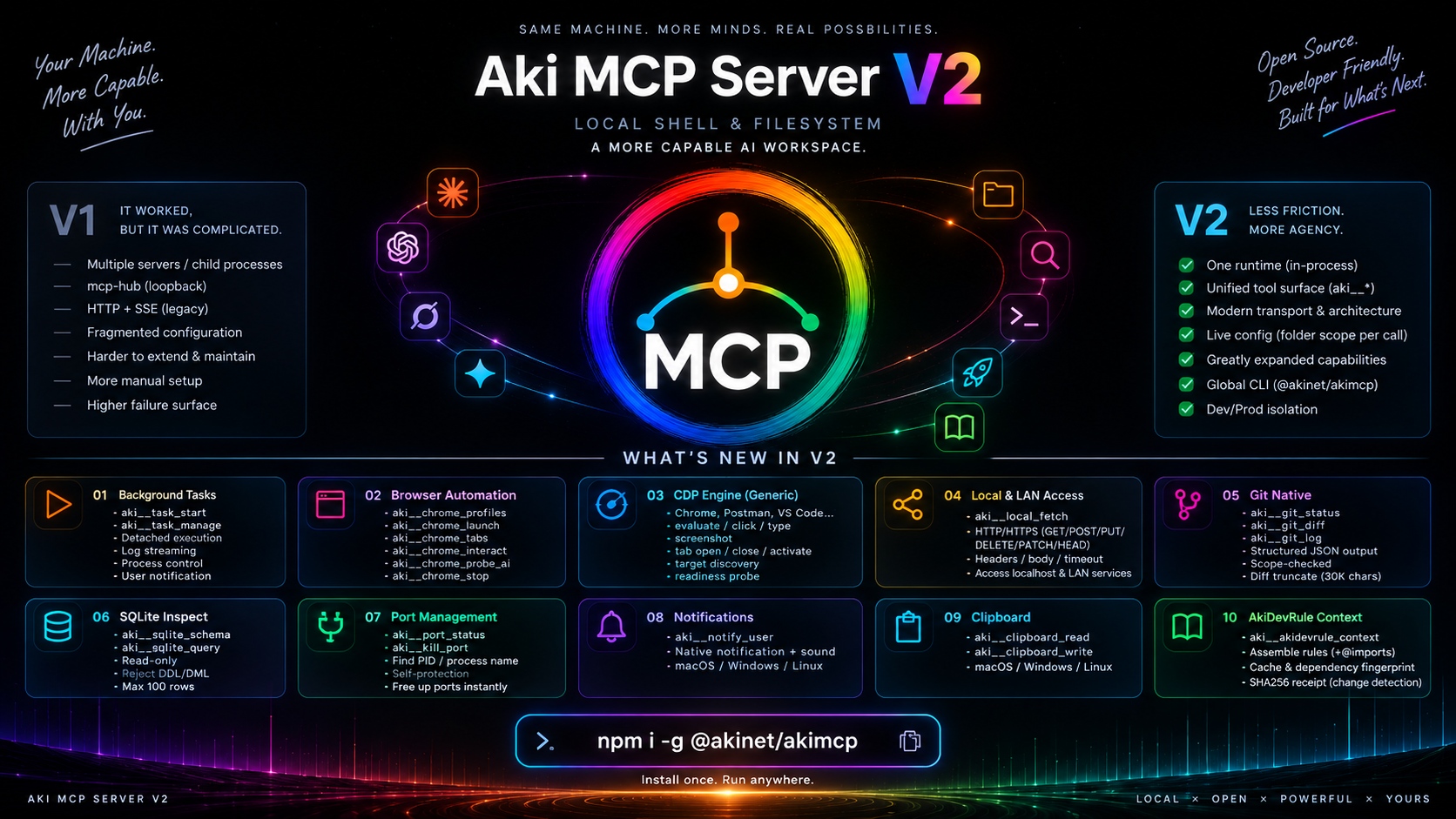
AKIMCP
Secure local files and shell access for Claude, ChatGPT, Grok, and Gemini through OAuth 2.1.
Running repo: /Users/demo/aki-mcp-sv · Config & keys: /Users/demo/.aki/mcpsv
Setup steps
0 · Remote ingress (Web & Mobile AI) — optionalingress active
AKIMCP is live at https://demo-host.ts.net through Tailscale Funnel. Expand this card only when you need to change ingress.
Cloudflare Tunnel is the recommended ingress (the "Owned public origin" tab): it holds a steadier connection, carries more bandwidth and answers from a far larger global network than Tailscale Funnel. Funnel needs no domain and npm start sets it up by itself, so it is what runs until you choose otherwise.
Complete these one-time prerequisites in order.
You're viewing this panel, so the first three below are already done; the two Tailscale checks are live.
- Install @akinet/akimcp (or clone repo).
- Started with
akimcp(ornpm start), running now. - … Install Tailscale and sign in.
- … Enable Funnel for your tailnet, free on every plan.
npm startenables it automatically; it only prints a link for you to approve once, when the tailnet hasn't allowed it yet.
Connector keeps dropping with "hostname doesn't resolve / isn't reachable"? The Funnel edge desynced, a Tailscale-side issue, not this server. Re-sync in a terminal (needs sudo, so it can't be a button here), then reconnect. Why: docs/research/claude-ai-oauth-connector.md round 9.
tailscale funnel --https=443 off && tailscale serve reset && tailscale funnel --bg 9999Funnel works with no domain, but a Cloudflare tunnel is steadier and faster: when you have a domain (or someone gave you a tunnel file), switch in the "Owned public origin" tab.
Replaces Tailscale entirely; OAuth and the tool suite stay the same.
Have a Cloudflare tunnel credentials JSON?
No tunnel yet? README: Exposing to the internet.
Or: any HTTPS edge you already run
Set PUBLIC_ORIGIN in .env (copy from .env.example), or prefix the start command: PUBLIC_ORIGIN=https://your-host npm start
Pick a domain and subdomain, then request it via Messenger; setup is manual, not self-serve yet.
Worth it over the free Tailscale + Funnel tab if you want a short, memorable URL instead of Tailscale's auto-generated *.ts.net hostname.
1 · Connectors: local IDEs + web AIs
One AKIMCP endpoint, two paths. Local tools (Postman, Cursor, Claude Code, AGY) connect directly over 127.0.0.1 — zero latency, no tunnel, works offline; each tab below carries a ready-to-paste local config. Web AIs (Claude, Grok, ChatGPT, Gemini) use the MCP URL below and are reachable now.
AkiMCPhttps://demo-host.ts.net/mcp••••••••••••••••••••••••One access token serves every client. Roll token replaces it: AIs connected with the passphrase refresh on their own, but a token pasted as a fixed bearer (a local snippet below) stops working until it is pasted again. Connect Notion with the passphrase like the other web AIs, never with a pasted token. Roll & sign out all clients also revokes refresh, so every AI must reconnect with the passphrase; use it if the token may have leaked. Roll passphrase issues a new one: the old passphrase stops authorizing new connections, while already-connected AIs keep working; use it if the passphrase may have leaked.
- Enter Name = MCP Name above.
- Enter URL = MCP URL above, then connect.
- Enter the Passphrase when AKIMCP opens the confirmation page.
Claude now discovers OAuth automatically. No Client ID or Client Secret is needed.
- Open Connectors → New Connector → Custom.
- Set Name = MCP Name above, Server URL = MCP URL.
- On connect, enter the Passphrase.
Name must match exactly, the paste-in instruction keys off it. Grok self-registers via PKCE, nothing else to paste.
↗ Enable Developer mode · Settings → Security and login
- Turn on Developer mode first. OpenAI requires it to create custom MCP apps.
- Pick an Icon (optional). Use
/Users/demo/aki-mcp-sv/public/favicon/icon-48.pngor any image. - Enter a Name and Description (your choice).
- Set Connection → Server URL = MCP URL above.
- Tick I understand and want to continue, then Create.
- On connect, enter the Passphrase.
ChatGPT self-registers via DCR (PKCE, no secret). Nothing to paste. Write tools may be limited depending on OpenAI's current policy.
Paid tiers only. Tested 2026-08-09: the connection is healthy, but Gemini web doesn't reliably discover or invoke the MCP tools, use Claude or Grok instead. Not recommended.
- Open custom connected apps (Gemini → paid subscriptions → Custom apps).
- Set the custom app link / Server URL = MCP URL.
- Open Advanced Settings and paste the Client ID and Client secret that akimcp prints at start (OAuth Client ID / OAuth Client Secret).
- Ignore Gemini's Copy redirect URI button; the redirect is already allowlisted server-side.
- On Continue, enter the Passphrase.
- Enable custom MCP servers in the Notion workspace settings (a workspace admin may have to).
- Add a Custom MCP server with the MCP URL above.
- Enter the Passphrase when AKIMCP opens the confirmation page.
- Add the connection inside the agent, then republish the agent.
Notion self-registers, nothing to paste. Connected this way it refreshes on its own after Roll token.
Control the Postman app
This launch attaches control that opening Postman from the Dock/Spotlight does not: it auto-clicks Approve / Continue / Run / Try again and toggles Thinking / Auto-run inside the Postman window. If Postman is already open, this attaches to it — it does not open a second instance.
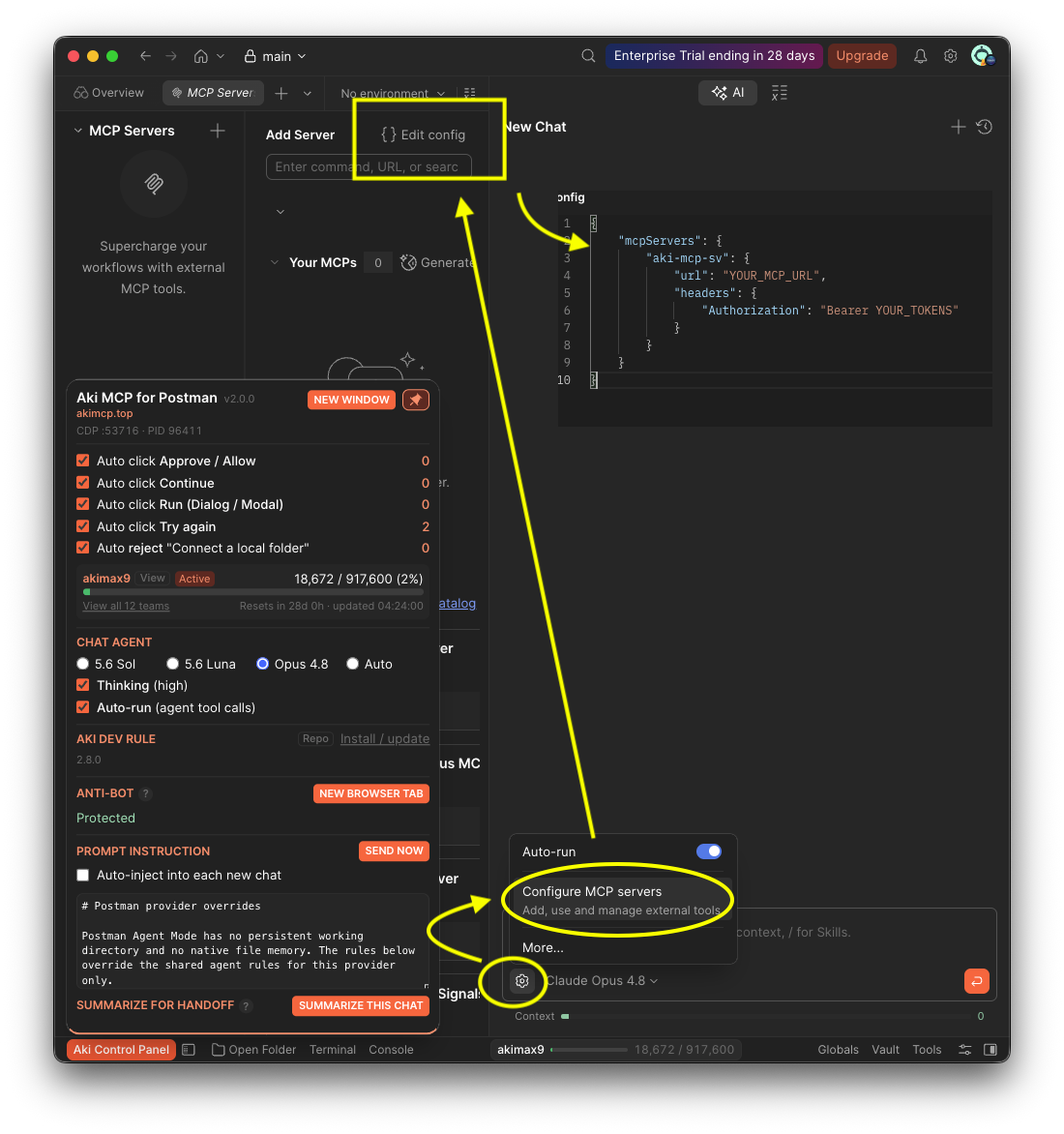
Connect Postman to this MCP
Postman runs on this machine, so it connects straight to the local engine on 127.0.0.1 — zero latency, and it keeps working with no internet and no tunnel. Click the JSON to copy, then paste it in Postman Connected Accounts.
{"mcpServers":{"aki-mcp-sv":{"url":"http://127.0.0.1:9999/mcp","headers":{"Authorization":"Bearer demo-access-token"}}}}
Setup screenshot:
Connect Cursor — local, 0ms
Paste into ~/.cursor/mcp.json (or Cursor → Settings → MCP Servers), then reload. Connects over 127.0.0.1 — no tunnel, works offline.
{"mcpServers":{"aki-mcp":{"url":"http://127.0.0.1:9999/mcp","headers":{"Authorization":"Bearer demo-access-token"}}}}
Connect Claude Code CLI — local, 0ms
Run this one-liner in a terminal:
claude mcp add --transport http aki-mcp http://127.0.0.1:9999/mcp --header "Authorization: Bearer demo-access-token"
Connect Antigravity (AGY) — local, 0ms
CLI (agy) and IDE: both read this file: merge the entry below under the existing mcpServers key in ~/.gemini/config/mcp_config.json, but don't overwrite the file. It registers a stdio command that spawns scripts/stdio.js (the local /mcp is Bearer-gated, so stdio is the transport that works without a token). The pre-allow below writes antigravity-cli/settings.json and covers the CLI only; the IDE asks for its own approval on the first tool call.
{"mcpServers":{"akimcp":{"command":"node","args":["/Users/demo/aki-mcp-sv/scripts/stdio.js"]}}}
Connect Codex CLI — local, 0ms
Add this block to ~/.codex/config.toml (append it — don't overwrite the file). Codex reaches the local engine over 127.0.0.1 via streamable HTTP; the bearer token is inlined so there's no shell env var to export first. Works offline, no tunnel. Restart Codex after saving.
[mcp_servers.aki-mcp]
url = "http://127.0.0.1:9999/mcp"
http_headers = { "Authorization" = "Bearer demo-access-token" }
2 · Install AkiDevRule (optional)
Pins how the AI writes, self-corrects, and names things into rule files loaded only when needed, so it stops re-guessing every session.
npx @akinet/akidevrule@latestRuns on Mac/Linux/Windows — only needs Node.js 18+. Re-run the command above to update, or add --check to print installed-vs-latest without changing anything. From a local clone: node install.mjs (or launchers install.sh / install.ps1). No sudo; installs into every detected ~/.claude* profile plus ~/.aki, removable with rm -rf.
3 · Instructions: copy the prompt
Paste it once into the custom-instructions setting of each AI (links below). It is static: tool details and the rule context come from the server itself, so it never needs re-pasting.
 Claude ↗
 Grok ↗
 ChatGPT ↗
 Gemini ↗
4 · Browser utilities optional
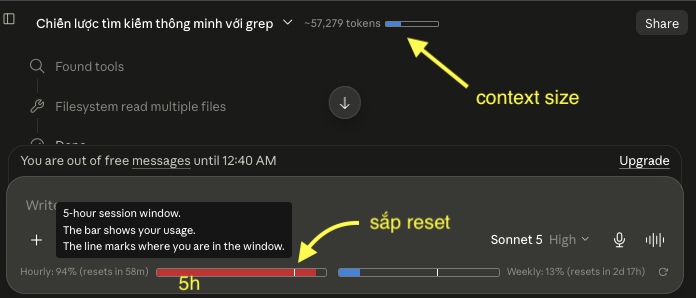
Claude Token Counter: a Chrome extension that shows your hourly and weekly usage bar under claude.ai's input box, including on the Free plan, which claude.ai doesn't surface itself.
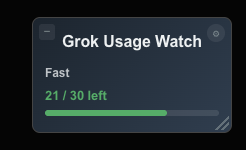
Grok Usage Watch: the same idea for grok.com, a rate-limit/usage bar for your Grok quota that the site doesn't show on its own.
Widen the claude.ai chat pane; paste the snippet below into the browser tab's Console (Cmd/Ctrl ⌥ J). Only tweaks CSS in your current tab, nothing account- or security-related, nothing leaves your machine.
document.querySelectorAll('.max-w-3xl').forEach(el => el.classList.replace('max-w-3xl', 'max-w-7xl'));5 · Folders the connector may reach
These folders scope file tools and the shell's working directory. Allowed shell commands run with your user permissions and may access files outside this list.
The default root is your whole home folder: Desktop, Documents, Downloads, Photos, everything under it, not just projects.
Save takes effect immediately for every tool (shell, search, and file read/write/edit alike) — no restart needed.
6 · Allowed shell commands
This is a guardrail for weak or overeager models, not a lock against you. It lets them work without approval prompts while keeping them off destructive commands; convenience comes first, so widen it freely for your own needs. Commands run as your user, so they can read what you can. Chips allow any subcommand; click a chip to restrict it to specific subcommands. Adding write commands (rm, git commit…) widens access. A restricted git row lets branch, tag and remote run in their read forms only; press any to allow every git command.
What each limit covers: this list bounds the shell command tool only. Section 5 (folders) bounds the file, search and git tools and where shell commands may run. The AGY and Kiro tools run in a locked mode of their own. Details: docs/feat/tools.md.
Trusted script directories
Scripts under these folders run without a command row above, so installed Aki skills work out of the box. The file tools cannot write into them, so the AI can't plant a script and run it; keep them to folders only an installer writes.
7 · Security & connection limits
What this protects: the public address is reachable by anyone who learns it, and the only thing between them and your machine is the passphrase. A caller that keeps presenting wrong credentials is blocked for a while; a caller with a valid token is never counted or blocked, and neither are mistyped URLs (404) or malformed requests (400). Connecting many providers in a row is safe — only wrong credentials count.
When a block ends: automatically after the block time below (the counter restarts from zero), immediately when you press Release, or when this app restarts. Callers are told by their public address; if your tunnel does not forward it, all remote callers share one address named loopback, so one attacker could block remote access until you release it. Changes apply from the next request, no restart.
Blocked right now
Clients
Every AI app that asked to connect. Signed in means it can keep renewing access on its own. A connection that was never approved is cleared after 1 hour; one that is no longer signed in is cleared after 30 days without activity. Remove signs a client out, but all clients share one access token, so a removed app keeps working until you press Roll token in section 1 — the others renew on their own.
Active now (since last restart)
Don't recognize a client or a caller? Roll the passphrase and use Roll & sign out all clients in section 1.
Security log
Wrong passphrases, rejected tokens, blocks, approvals and new callers — newest first, the last 200 lines. Saved to ; at 1 MB it moves to security.log.1, so it never grows past about 2 MB.
8 · Tool providers
Each provider is a group of tools the AI sees. One that is not installed on this machine (Chrome, Postman, agy, kiro-cli) is hidden automatically; switch off one you do not use to keep the AI's tool list short. The agy and Kiro CLI tools start off, because each hands a whole task to another paid agent: switch them on here when you want them. Rule context, files, search and shell are always on.
A switch applies on this server at once. An AI client sees it the next time it lists tools, which for most clients means a new chat or reconnecting the connector. After installing or removing an app, press Detect again.
9 · Call log
Every tool call is written to /Users/demo/.aki/mcpsv/tool-calls.jsonl as one JSON line: when, which tool and op, ok or not, how long, which client. No prompt, expression or argument text is ever written.
Basic (the default) keeps a short error code; Detail adds the full error text, the chat it acted on (from) and a hash of eval expressions. Keep days is how long past day-files stay before being deleted; the MB cap rolls the current file over to a dated one when it grows.